
Before
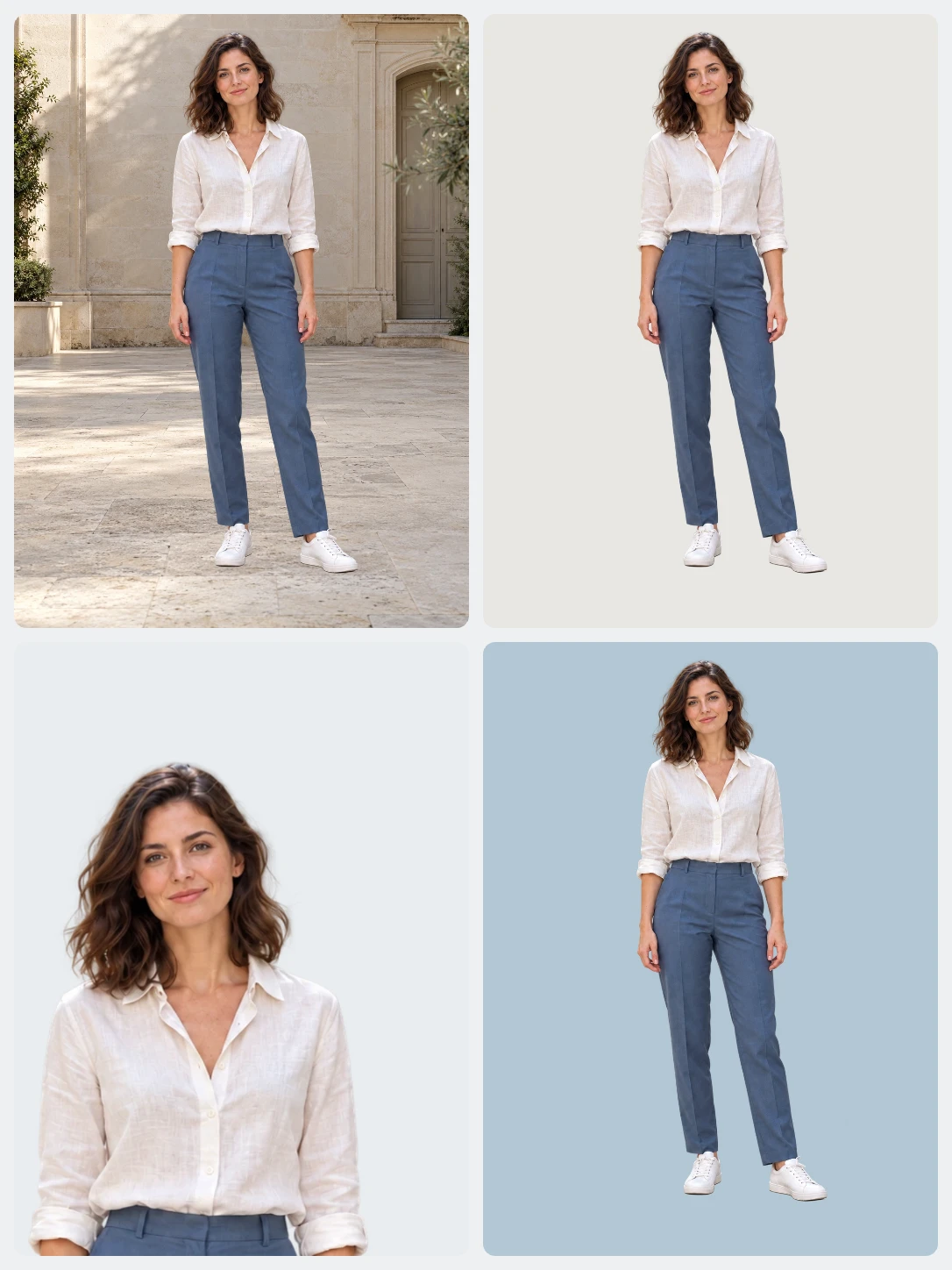
Portrait on a flat backdrop
Or drop an image here.
PNG / JPG / WEBP / AVIF · Max 19 MB


from images in seconds
Compare the original with the cutout, check hair and fine edges up close, and download when it looks right.


Review hair, shoulders, and soft edges before export.
Upload a photo, check the cutout, and download it. Or keep editing with a new background, text, or crop. No other tools needed.
Before
Portrait on a flat backdrop
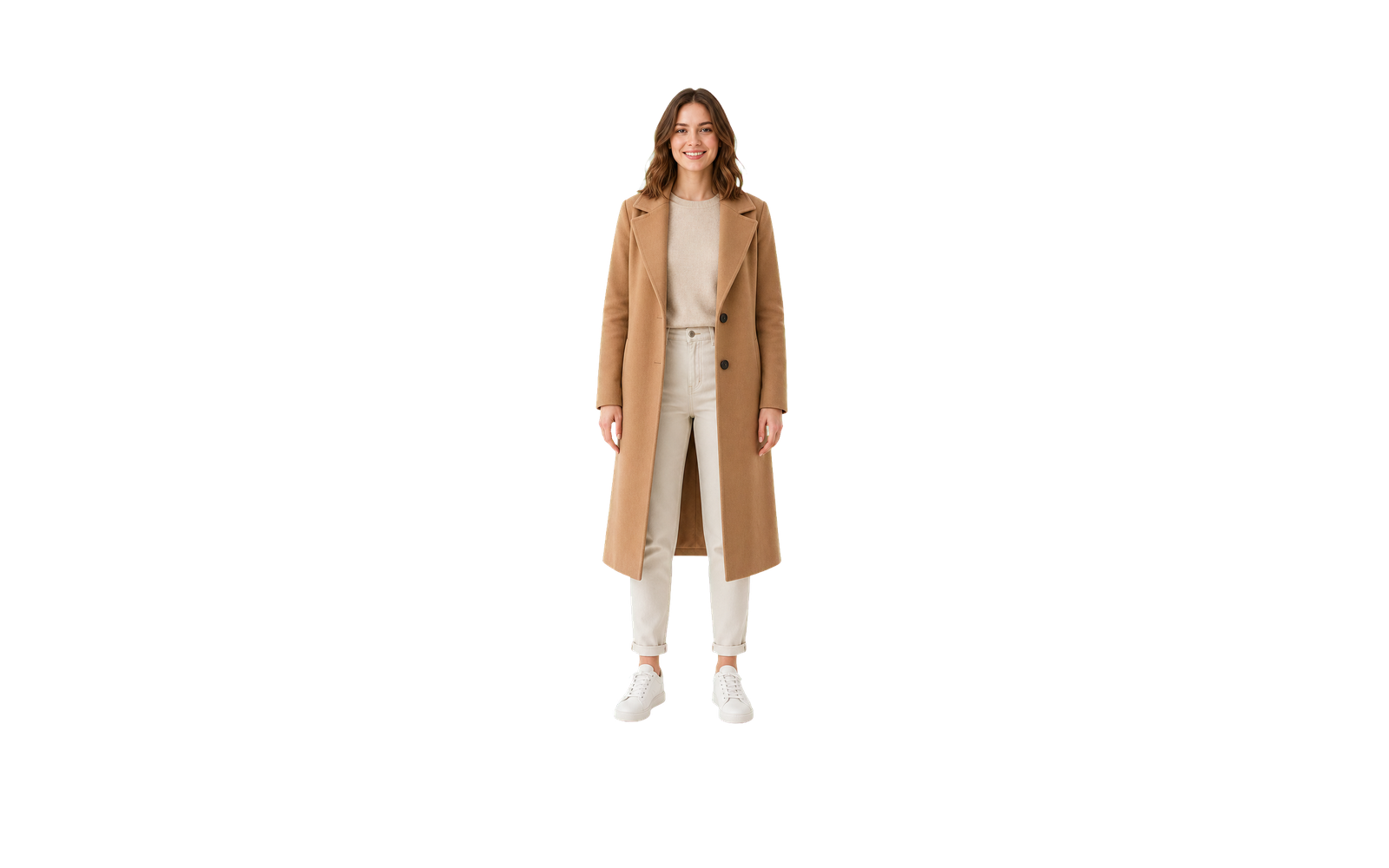
After
Ready to reuse
Prepare product photos, update a portrait, or build visuals for your next campaign. Explore how background removal and editing fit into your work.
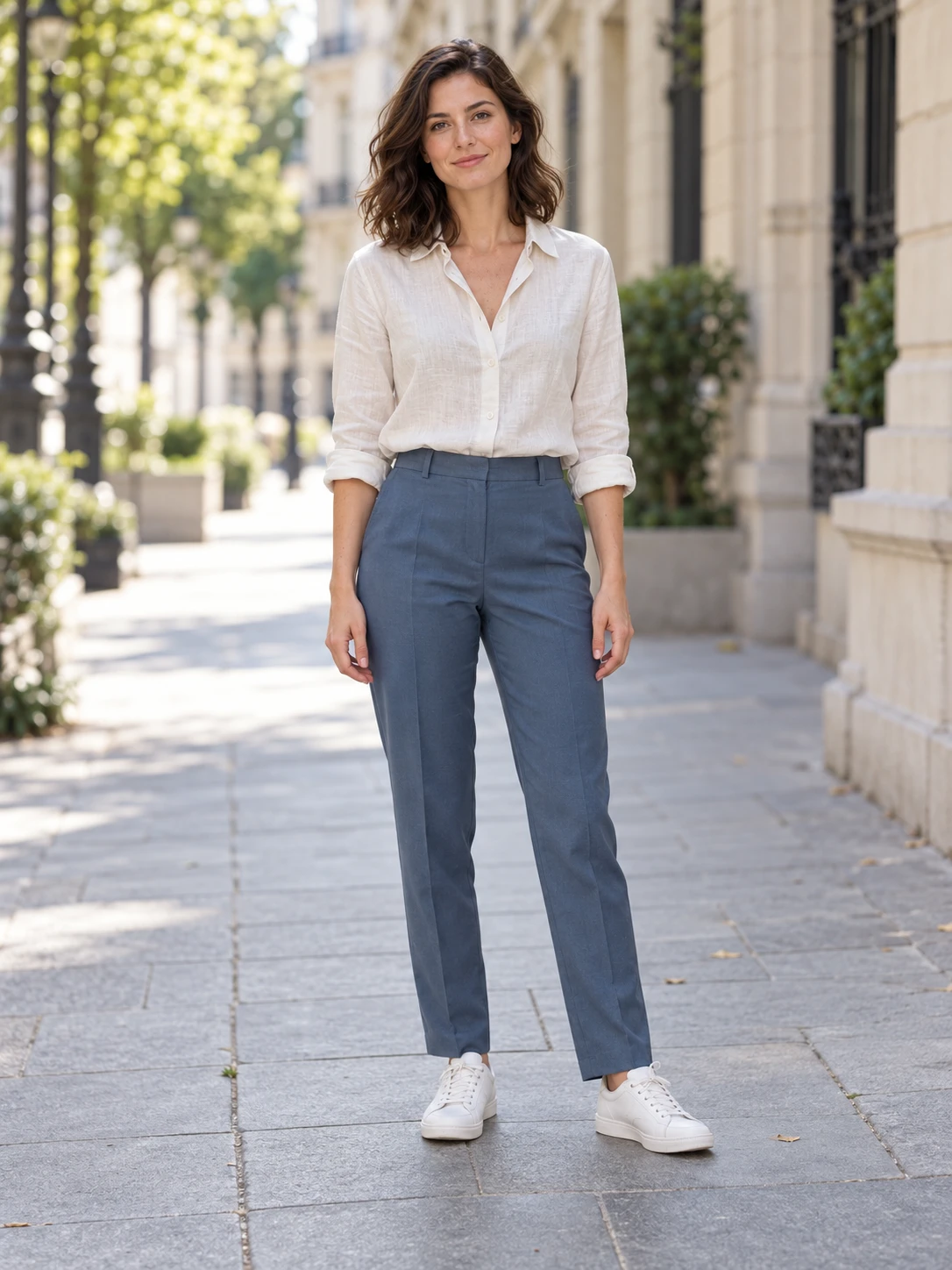
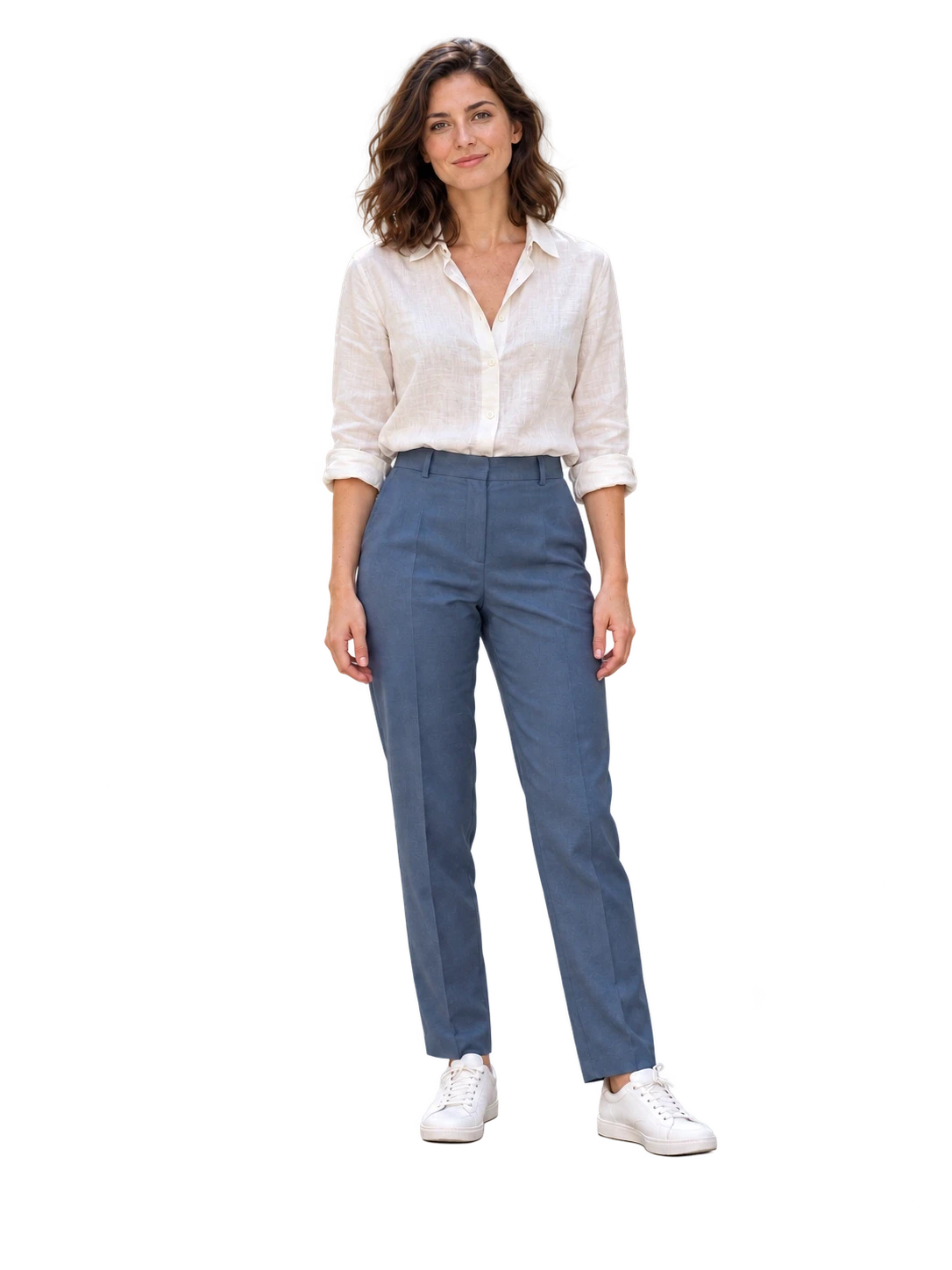
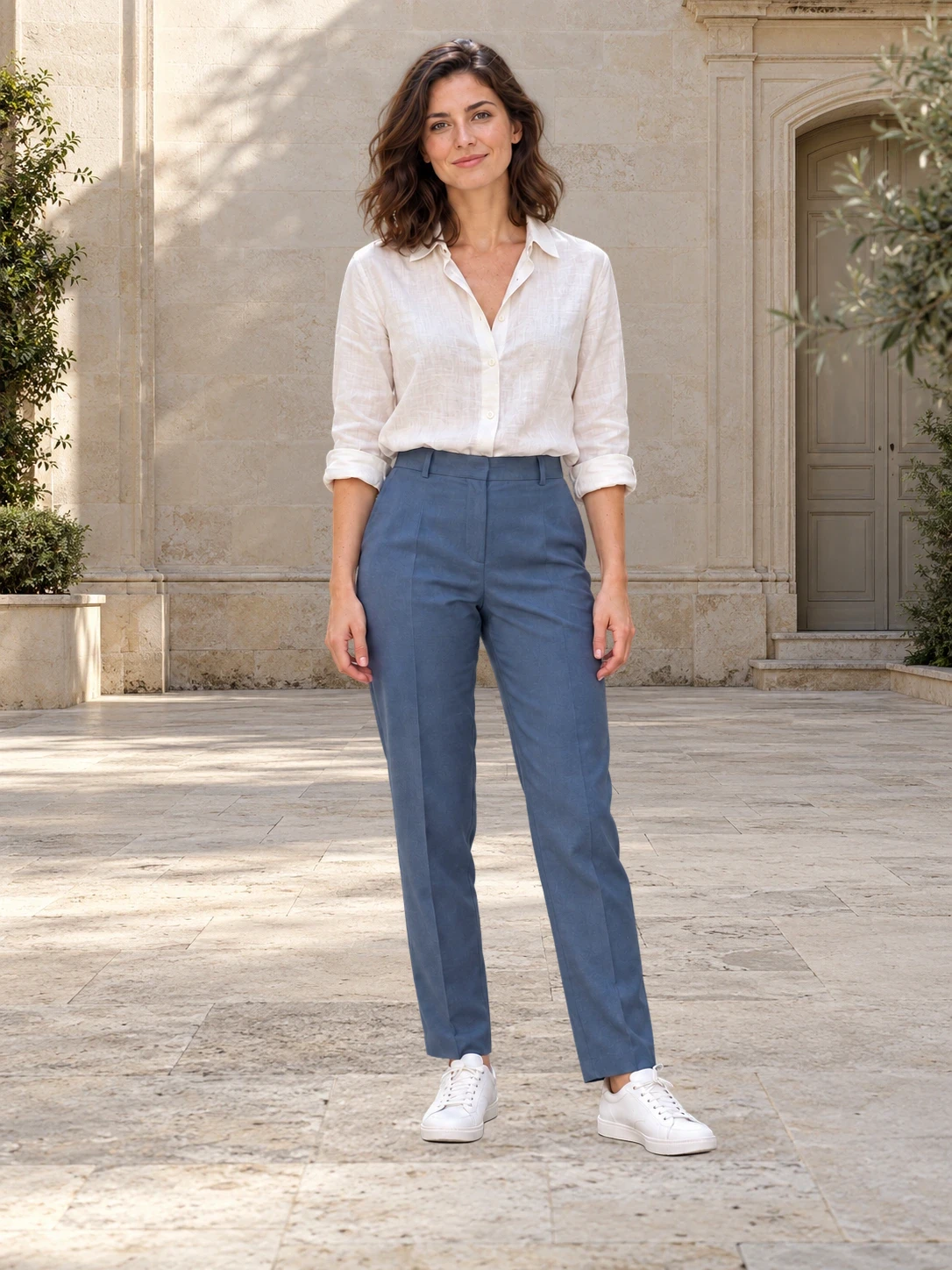
Prepare product photos, campaign visuals, and social posts in one place.
Design studios
Campaign assets
Cut the subject out of a busy shot, check the edges, and drop it straight into a campaign layout.
Ecommerce sellers
Product listings
Give every product the same clean white background so listings, ads, and catalog pages look consistent.
Content creators
Daily visuals
Turn everyday photos into cutouts for thumbnails, posts, and stories without opening a design app.
Yes. The home page handles one image at a time. To process multiple images together, use Bulk Editing. It requires an account and image credits.
You can upload PNG, JPG, JPEG, WebP, or AVIF images.
Yes. You can preview the result, compare the edges, and download only when it looks ready.
No. Bgbye works with images only: PNG, JPG, JPEG, WebP, or AVIF.
Each image must be 19.0 MB or smaller. If yours is larger, resize or compress it, then upload it again.
Download a transparent PNG to place on any background, or add a color, photo, or text in the editor first. Use it in product listings, profile photos, ads, social posts, and design projects.
Your result appears right on the home page, and you can find it later under My results. If you are not signed in, results are kept only in this browser tab. Sign in to keep them across devices.
Photos with one clear subject work best. Good lighting and contrast between the subject and the background give cleaner edges.